No Sound in Screen Recording (Windows 10/11)
If your recording has video but no audio — or you only get mic audio / only get system sound — this checklist will help you fix it quickly and reliably.
Last updated: 2026-03-07 · Applies to Windows 10/11
Diagnose first: which audio is missing?
Spend 30 seconds here — it determines which fix to try.
System audio is missing
You can hear your microphone, but game/app/music is silent in the recording.
- Usually: output device mismatch, exclusive mode, or device switching mid-recording.
- Fixes: #2, #3, #4, #6, #9.
Microphone is missing
System audio is present, but your voice is silent (or extremely quiet).
- Usually: privacy blocked mic, wrong input device, input volume is low/muted.
- Fixes: #1, #5, #7, #8.
Everything is silent
The whole recording has no audio at all.
- Usually: recorder captured wrong device, or your exported file/container is broken.
- Fixes: #2, #3, #10, #11.
Do this test once
Play a YouTube video (system audio) and speak into your mic (microphone). Record 10 seconds. If only one source is missing, you’ll know where to focus.
12 fixes that solve most “no sound” recordings
Try in order. The first 4 solve the majority of cases.
Allow microphone access for desktop apps
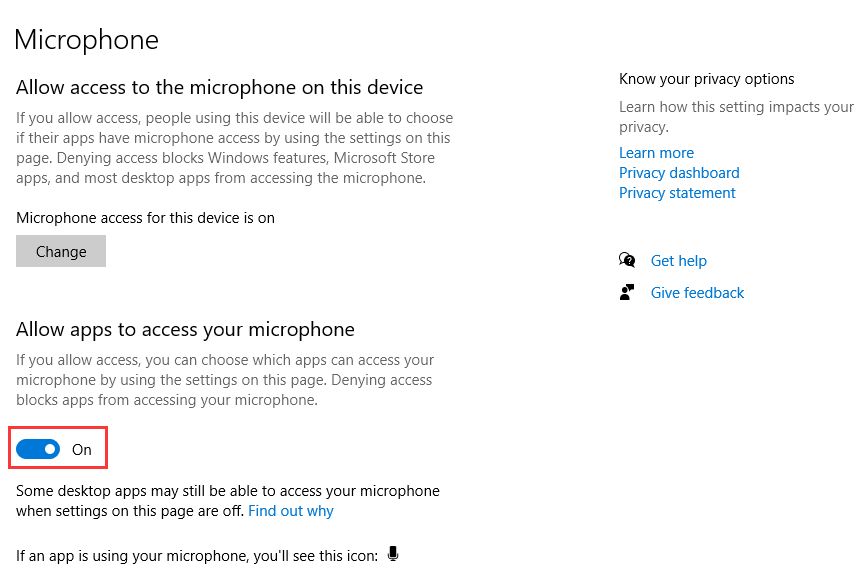
Windows Settings → Privacy & security → Microphone. Turn on Microphone access and Let desktop apps access your microphone. If your recorder was installed recently, restart it after changing this.
Confirm your active output device (system audio follows it)
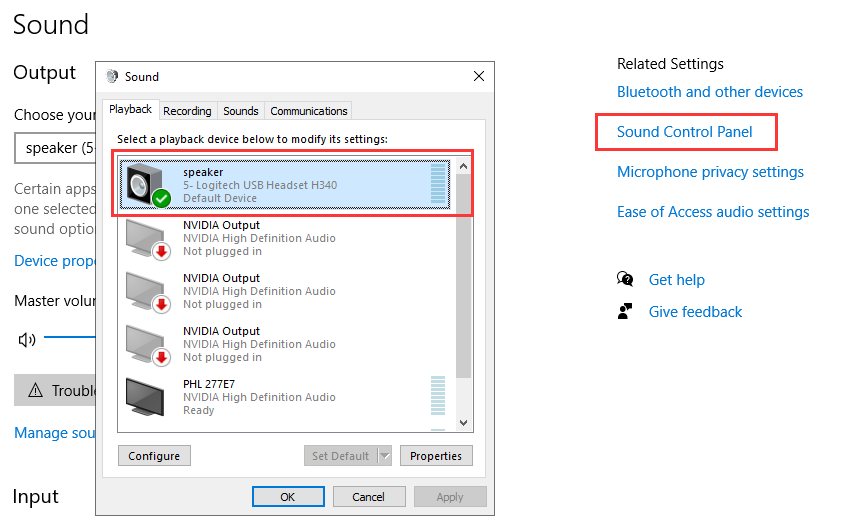
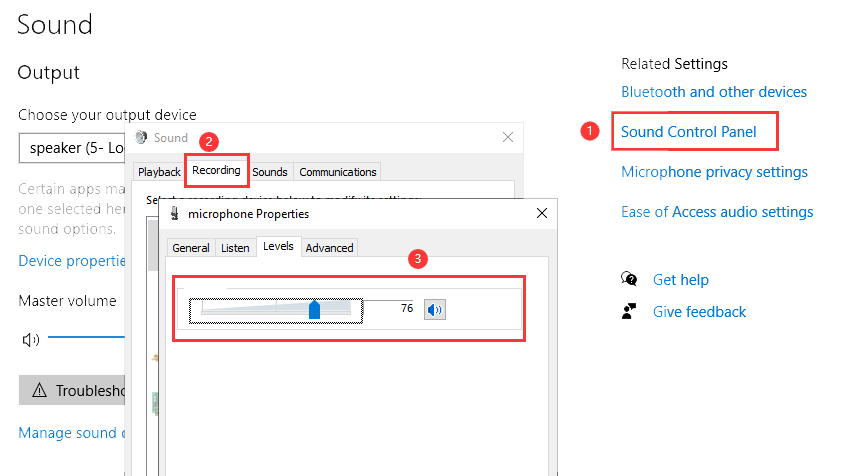
Windows Settings → System → Sound → Sound Control Pannel → Playback. Select the device you’re actually listening on (speakers/headset) and set it as default. If you changed devices mid-recording, stop, re-select the device, and restart the recorder.
Disable Exclusive Mode on the output device (common conflict)
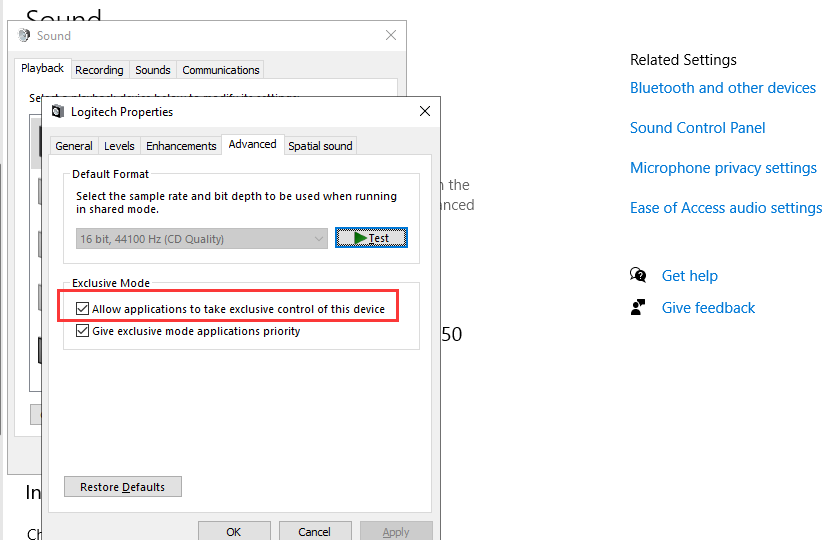
Sound Settings → More sound settings → Playback tab → pick your output device → Properties → Advanced. Uncheck Allow applications to take exclusive control. This prevents one app from “owning” the device and starving the recorder.
Restart the audio path (fast reset)
Close the recorder and the app you’re recording, then: unplug/replug USB headset/mic (or reconnect Bluetooth), and reopen the recorder. Audio routing is notoriously sticky on Windows when devices change.
Select the right microphone input (many PCs have multiple)
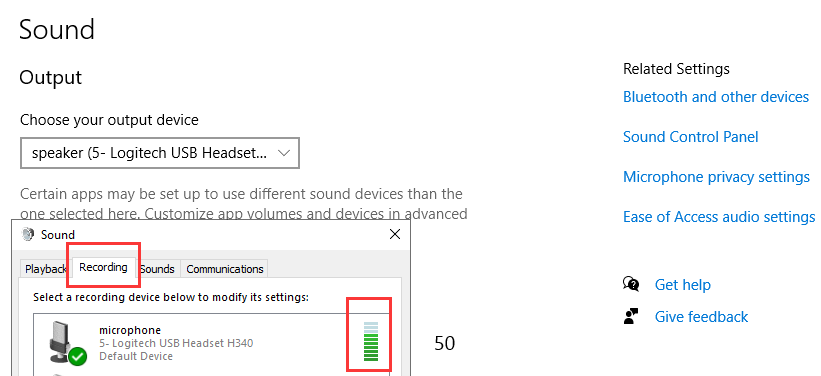
Windows Sound settings → Input. If you see multiple microphone devices (headset vs built-in vs USB), select one and watch the input meter. Choose the one that moves when you speak.
Check Volume Mixer and per-app volume
Windows Volume Mixer can mute a specific app while the rest plays normally. Open Volume Mixer, confirm the app you’re recording is not muted and output is set correctly.
Turn off “Communications” volume reduction (quiet mic/system audio)
In classic Sound settings → Communications tab, set it to Do nothing. Windows can automatically reduce volume during calls, which may make recordings seem silent.
Adjust microphone input volume and disable accidental mute
Windows Sound settings → Input → device properties. Raise input volume and ensure it’s not muted. Many keyboards/headsets have a hardware mute switch — check that too.
Bluetooth headset pitfall: switch off “Hands-Free” if possible
Some Bluetooth headsets switch to a low-quality hands-free profile when the mic is active. This can cause weird routing or poor audio. If you can, use a USB headset/USB mic, or select the non-hands-free output device.
Match sample rates (rare, but real)
In device Properties → Advanced, set a common format like 48 kHz for both input and output. Mismatched sample rates can cause silent captures or distorted audio in some setups.
Try a different capture source (protected content may block audio/video)
Some apps and protected streaming content may block capture by design. Test with a local video file or a different website/app to confirm your setup is working.
Export again with a safe container (rule out a bad file)
If audio meters show activity during recording but the exported video is silent, export again as MP4 (H.264) and play it in a different player. This rules out a player/codec issue.
Prevent the issue next time (simple habits)
Most no-sound recordings are avoidable with a 30-second routine.
- Do a 10-second test every time you change headset/mic or move between apps.
- Don’t switch output devices mid-recording (Bluetooth → speakers, etc.). If you must, stop and restart the recorder.
- Use headphones to avoid echo and feedback loops.
- Keep Windows permissions stable (especially after updates).
Need the full recording setup? Read: How to record on Windows 11 with audio.
FAQ
Common edge cases that cause “silent” recordings.
- I can hear audio live, but recording is silent. Check the recorder’s selected output source and Windows default output device. Then try exporting to MP4 (H.264) and test playback in a different player.
- Mic is very quiet. Raise input volume in Windows, move the mic closer, and avoid using Bluetooth hands-free mode.
- Only one app is silent in recordings. Use Volume Mixer and app-specific audio settings; some apps have separate output devices.
- Why does the video look fine but audio is missing only on some sites? Protected content and DRM can block capture. Test with local content to confirm your pipeline works.
Try Videoradius Screen Recorder
Record screen with audio on Windows 10/11. Lightweight, fast setup, and beginner-friendly.
Compatible with Windows 10/11 · 30-day money-back guarantee