Record Screen on Windows 11 with Audio
This is a practical, step-by-step guide to record your Windows 11 screen with system sound and microphone using Videoradius Screen Recorder. We’ll also cover the key Windows checks that prevent “no sound” recordings.
Last updated: 2026-03-07 · Applies to Windows 10/11
Quick answer (if you’re in a hurry)
If you only want the fastest reliable setup, do this and start recording.
Windows checks
- Use headphones if possible (prevents echo).
- Open Windows Sound settings and confirm the right output device is active.
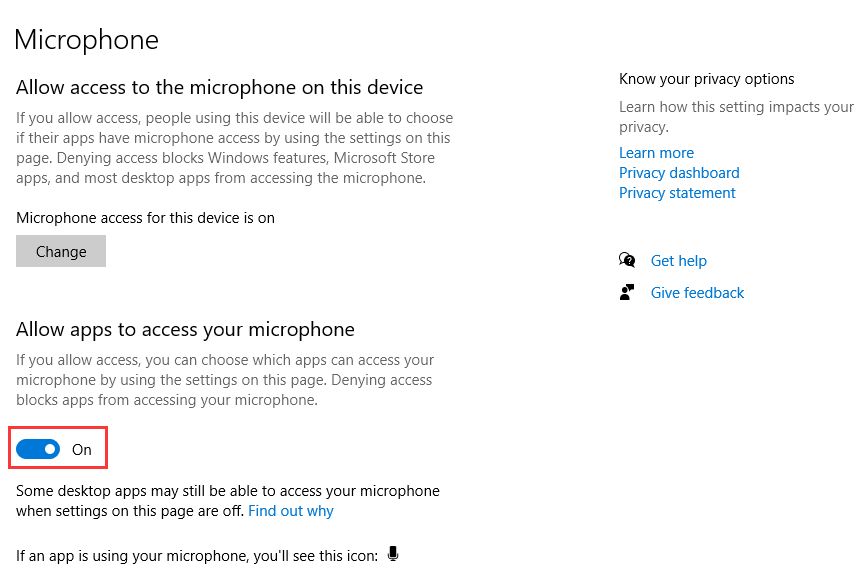
- Windows Settings → Privacy & security → Microphone → allow access for desktop apps.
Recorder checks
- Enable System audio (computer sound).
- Select your Microphone and verify the input meter moves when you speak.
- Record a 10-second test clip and play it back before you do the full recording.
Safe export settings
- Format: MP4 (H.264)
- Tutorials/meetings: 1080p, 30fps
- Gaming: 1080p, 60fps (increase bitrate)
Step-by-step in Videoradius: record with system audio + microphone
A product-first flow that avoids the top failure modes: wrong device, blocked mic, and “silent system audio”.
2-minute setup (recommended)
If you want the fastest reliable result, start in Videoradius Screen Recorder and follow the steps below. If anything is missing (no system sound / no mic), jump to fast fixes.
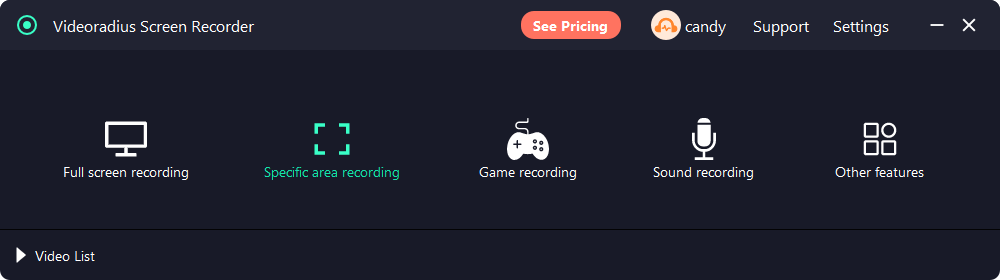
Open Videoradius and choose a capture mode
Launch Videoradius Screen Recorder, then choose Full screen, Window, or Area. For tutorials, Window/Area is usually best (avoids notifications and distractions). If your PC struggles, capture a smaller region.
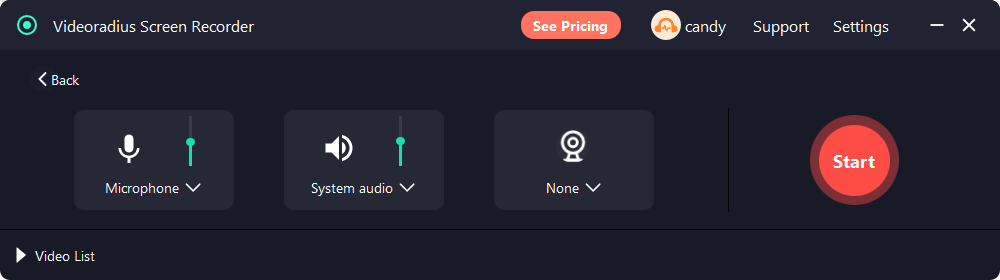
Enable System audio (computer sound) and confirm the Windows output device
In Videoradius, turn on System audio. Then play a short sound (YouTube/system sound) and confirm Windows is outputting to the right speakers/headset. If you switched Bluetooth/USB devices, stop and restart the recorder after re-selecting the output device.
Windows path: Settings → System → Sound → Output.
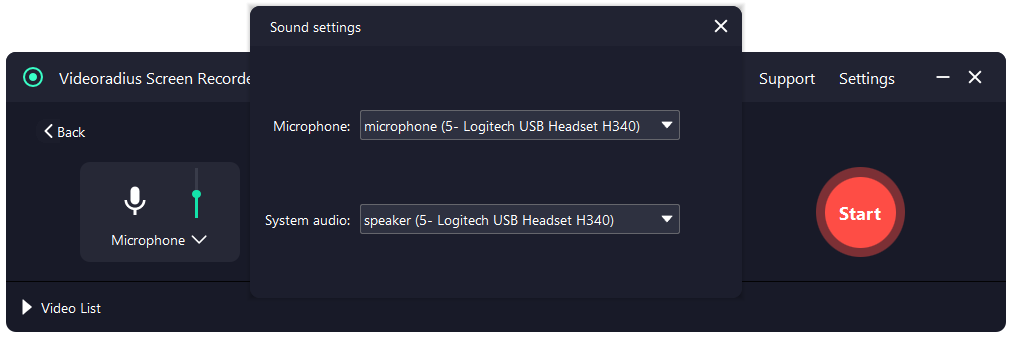
Select your Microphone and verify input levels
Select your Microphone in Videoradius and verify the input meter moves when you speak. If it stays flat, check Windows microphone privacy for desktop apps.
Windows path: Settings → Privacy & security → Microphone.
Record a 10-second test clip (saves the most time)
Record 10 seconds and play it back immediately. Confirm: (1) system audio is present, (2) your voice is present, and (3) the mix is reasonable. Fixing issues is faster when the test is short.
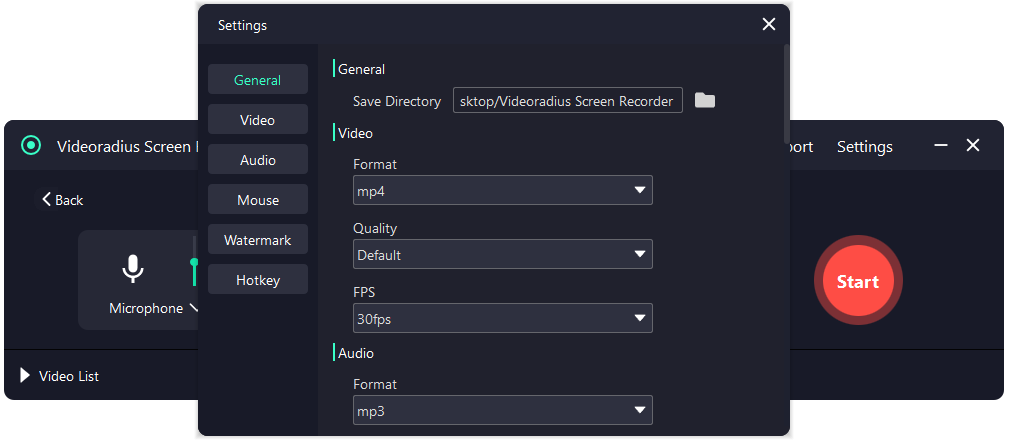
Use safe export settings (then change one thing at a time)
Start with MP4 (H.264), 1080p, 30fps for tutorials/meetings. For fast motion, try 60fps and increase bitrate gradually. If recordings stutter, lower FPS first (60 → 30) or capture a smaller region.
If your recording is laggy, see: Screen recording lag / stutter fix.
Record the full session and export
Start recording, then stop when done and export. After export, do a quick playback check to confirm audio and video are correct before you delete the source or move on.
Tip: Use headphones to prevent echo when recording system audio + microphone.
If there’s still no sound, use the dedicated troubleshooting flow
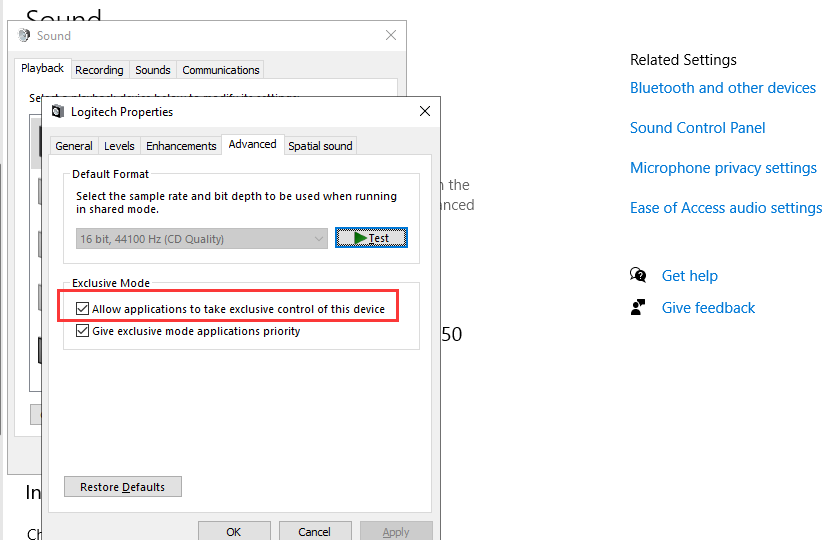
When audio is missing, it’s usually one of these: output device mismatch, Windows mic privacy, or Exclusive Mode conflicts. Use the full checklist here: No sound in screen recording (Windows 10/11).
Quick checklist
— System audio enabled
— Microphone selected (meter moves)
— Windows microphone permission allowed for desktop apps
— 10-second test clip confirms both audio sources
Which recorder should you use? (quick comparison)
Windows 11 gives you multiple options. Pick based on what you’re recording.
- Videoradius Screen Recorder: recommended when you want a reliable system audio + mic setup, area/window capture, and simple export settings. Learn more.
- Xbox Game Bar: good for quick clips, but it doesn’t record the desktop in every scenario (and some apps block capture).
- Snipping Tool (screen recording): simple UI, but feature set is limited compared with dedicated tools.
No matter which tool you choose, Windows audio routing and microphone privacy settings still matter.
Best settings (1080p/4K, 30/60fps)
These are “safe” baselines for quality and file size. Adjust bitrate first.
| Use case | Resolution | FPS | Format | Notes |
|---|---|---|---|---|
| Tutorial / meeting | 1080p | 30fps | MP4 (H.264) | Stable, good for sharing. Keep cursor visible. |
| Fast UI / light gameplay | 1080p | 60fps | MP4 (H.264) | Increase bitrate to avoid blur in motion. |
| High detail / 4K monitor | 4K | 30fps | MP4 (H.264) | Large files. Prefer 30fps unless motion matters. |
If your PC lags
Lower FPS (60 → 30) before lowering resolution. Also try a smaller capture area.
If files are too big
Reduce bitrate first. If you’re recording mostly slides, 1080p30 can look great at modest bitrate.
If audio matters most
Keep mic clear: use headphones, avoid clipping, and stay consistent with input device.
If there’s no sound: the fastest fixes
Most silent recordings come from permissions, device routing, or exclusive-mode conflicts.
Check Windows microphone privacy
Windows Settings → Privacy & security → Microphone. Enable “Microphone access” and “Let desktop apps access your microphone”.
Confirm the active output device
System audio capture can follow the active output device. If you switched to Bluetooth/USB mid-session, re-select the correct output and restart the recorder.
Disable Exclusive Mode (try once)
Sound Settings → More sound settings → your output device → Properties → Advanced. Uncheck “Allow applications to take exclusive control”.
Reset the audio path
Close the recorder, replug headset/USB mic, then reopen. This resets device routing — common after Bluetooth profile changes.
Need a deeper troubleshooting flow? Use the dedicated guide: No sound in screen recording (Windows 10/11).
FAQ
Short answers to questions people ask right before they hit Record.
- Can I record system audio and mic separately? Some recorders support separate tracks; otherwise, you can still balance levels in Windows Volume Mixer and do a short test clip.
- Will Windows 11 block recording in some apps? Yes — some protected video content and apps can show black screens or muted audio by design.
- What’s the easiest way to avoid echo? Use headphones. If you must use speakers, lower speaker volume and move the mic further away.
- What format should I use? MP4 (H.264) is the safest for sharing and playback compatibility.
Try Videoradius Screen Recorder
Record screen with audio on Windows 10/11. Lightweight, fast setup, and beginner-friendly.
Compatible with Windows 10/11 · 30-day money-back guarantee