Fix Laggy Screen Recordings (Windows 10/11)
This guide helps you stop stutter, choppy playback, and FPS drops in screen recordings. It focuses on the real causes: capture area, FPS/bitrate, encoder load, and Windows performance settings.
Last updated: 2026-03-11 · Applies to Windows 10/11
Quick answer (fastest reliable fix)
Do these 5 things first — they fix most choppy recordings without guesswork.
Capture less
- Record a smaller window or area instead of full screen.
- Close apps that animate overlays/notifications.
Lower FPS first
- Change 60fps → 30fps.
- Keep 1080p for readability; reduce bitrate if needed.
Use hardware encoding
- If available, prefer hardware H.264 encoding (GPU).
- Update GPU drivers once if you haven’t in a while.
Before you change settings: confirm what’s actually lagging
This prevents you from fixing the wrong problem (preview lag vs encoded video lag).
- Check the final file, not just the live preview. Some previews stutter while the encoded file is fine.
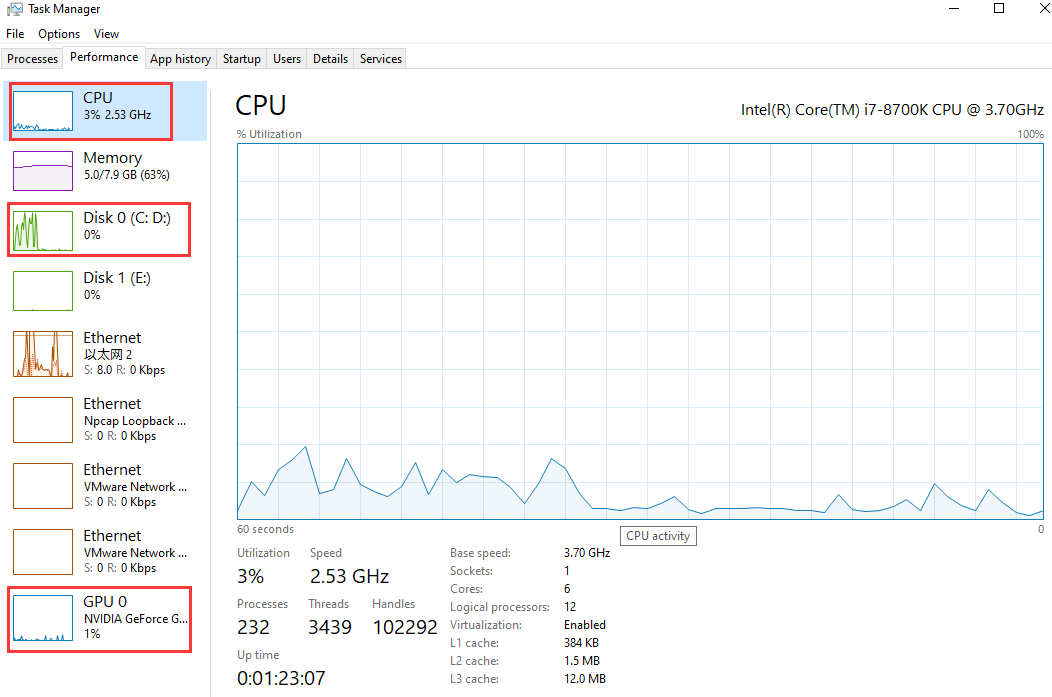
- Open Task Manager → Performance: watch CPU, GPU, and Disk usage while recording.
- If Disk is pegged, move output to a faster drive (SSD) and avoid recording to network drives.
Step-by-step fixes (change one thing at a time)
Start at the top and stop when your recording becomes smooth.
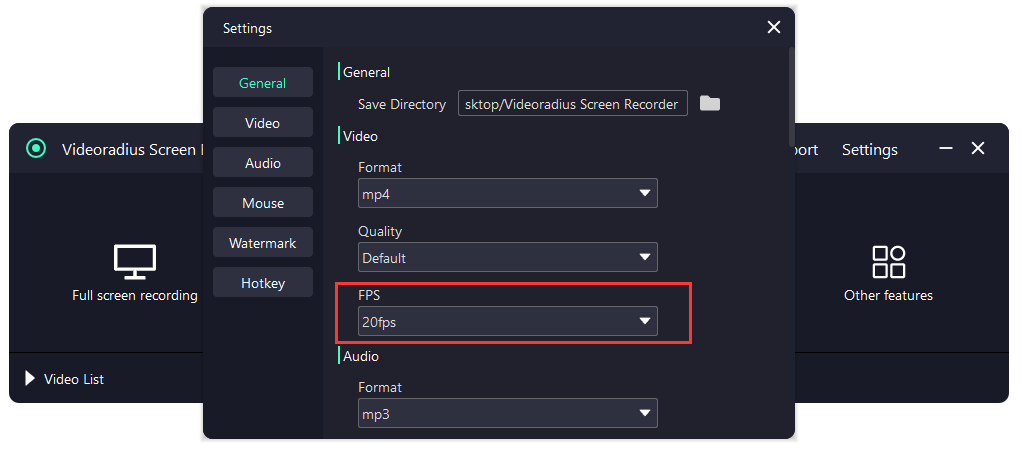
Switch 60fps → 30fps
For tutorials, 30fps is usually smooth and much easier to encode. If you must use 60fps, reduce capture area and increase bitrate only after stutter is gone.
Capture a smaller region (window/area)
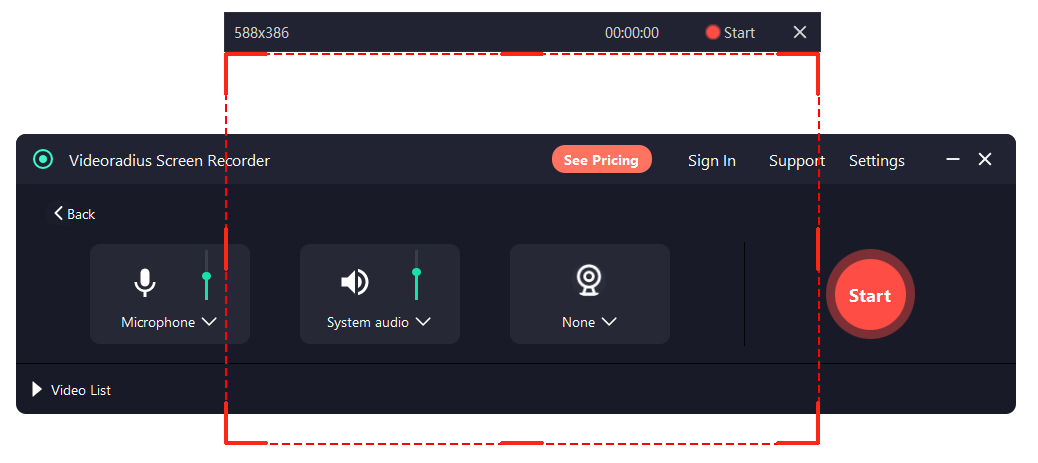
Full-screen 4K capture is heavy. If your goal is teaching software, recording only the app window often looks better and stutters less.
Use MP4 (H.264) and a reasonable bitrate
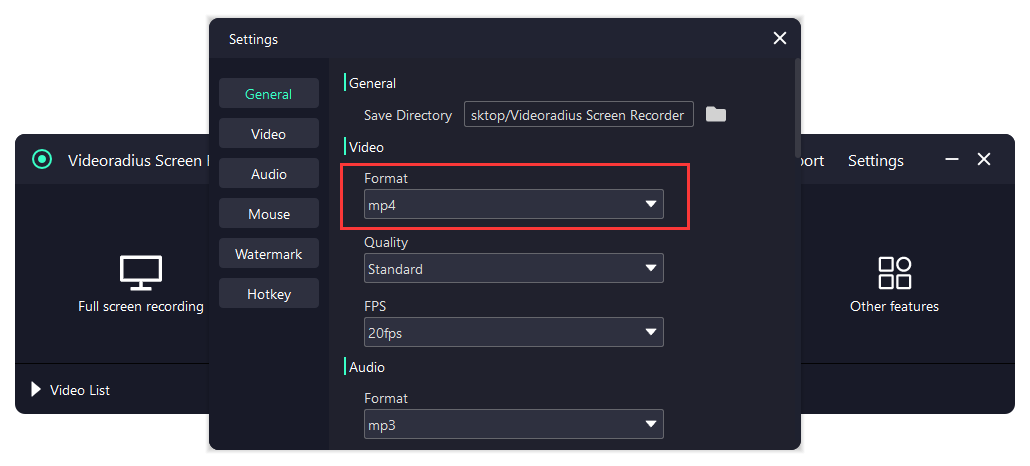
If bitrate is too high, the encoder may struggle. If it’s too low, motion looks blocky. Start moderate, then adjust in small increments.
Close heavy background apps
Browsers with many tabs, cloud sync, and video calls can steal CPU/GPU. Close them for a test recording to confirm the impact.
If your file is smooth but audio is missing
That’s a different failure mode. Use the dedicated guide: No sound in screen recording (Windows 10/11).
FAQ
Quick answers for the most common performance questions.
- Should I reduce resolution or FPS first? Reduce FPS first (60 → 30), then reduce capture area, then resolution if needed.
- Why does preview lag but the file is fine? Live preview can stutter when system resources are tight, while encoding still writes a smooth file.
- Does recording system audio cause lag? Usually no. Most lag comes from video encoding, capture area, and FPS/bitrate choices.
Try Videoradius Screen Recorder
Record smoothly on Windows 10/11 with beginner-friendly settings and a fast setup.
Compatible with Windows 10/11 · 30-day money-back guarantee